
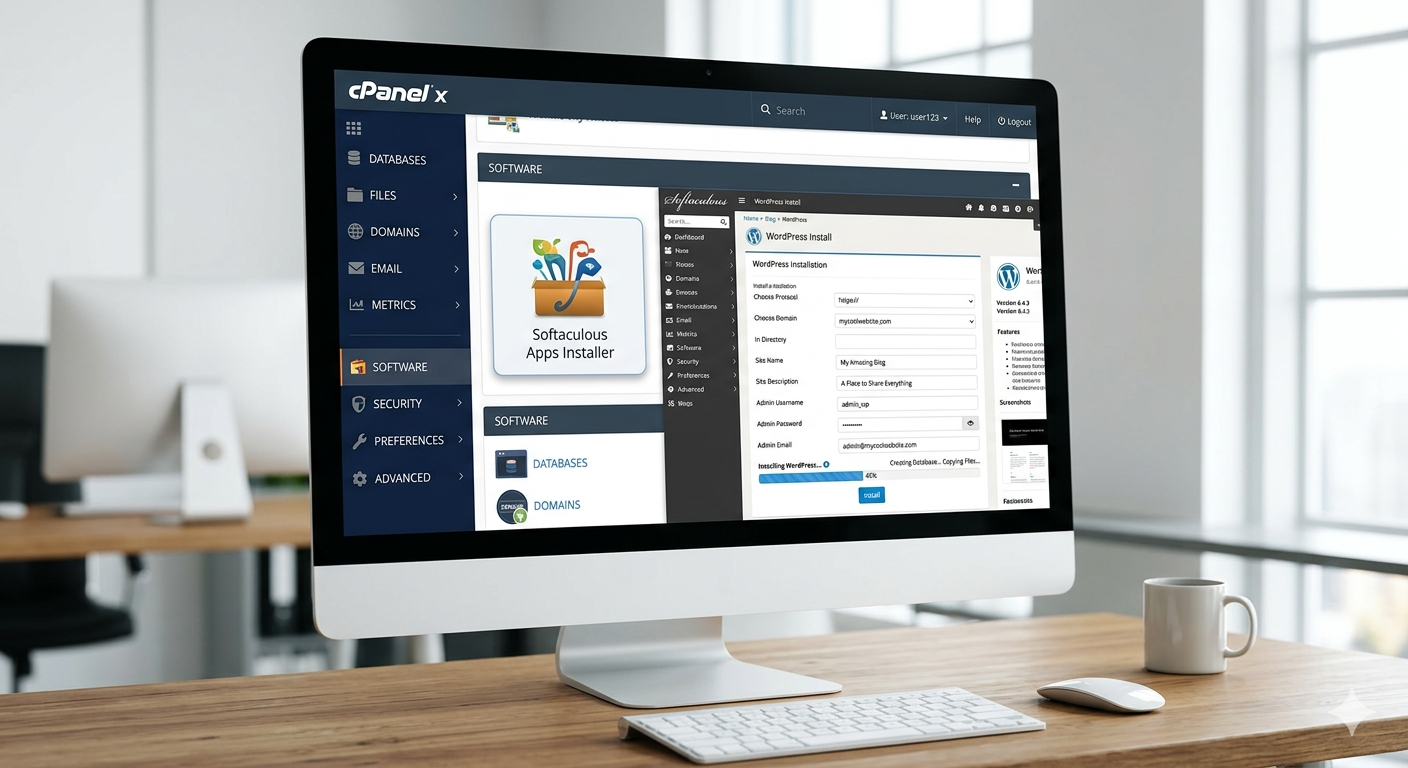
How to Install WordPress on Hosting (Beginner Guide)

Introduction
If you are planning to create a website, the first step is learning how to install WordPress on hosting. WordPress is the most popular content management system (CMS) in the world, and it powers millions of websites.
For beginners, the installation process may seem technical, but the good news is that it is actually very simple. In this step-by-step beginner guide, you will learn different methods to install WordPress easily and get your website live in just a few minutes.
What You Need Before Installing WordPress
Before starting the installation process, make sure you have the following:
- A domain name (your website address)
- A hosting account (where your website files are stored)
- Access to your hosting control panel (like cPanel)
Most hosting providers offer one-click WordPress installation, which makes the process even easier.
Method 1: Install WordPress Using One-Click Installer
This is the easiest and fastest method, especially for beginners.
Steps to follow:
- Login to your hosting account
- Open cPanel or your hosting dashboard
- Find the Softaculous Apps Installer or WordPress installer
- Click on Install WordPress
- Select your domain name
- Set your website name, username, and password
- Click on the Install button
Within a few seconds, WordPress will be installed on your hosting.
Why this method is recommended:
- No technical knowledge required
- Fast and automated
- Beginner-friendly

Method 2: Install WordPress Manually
If you want more control, you can install WordPress manually.
Step-by-step process:
1. Download WordPress
Go to the official WordPress website and download the latest version.
2. Upload Files to Hosting
- Login to cPanel
- Open File Manager
- Upload the WordPress ZIP file
- Extract it inside the public_html folder
3. Create a Database
- Go to MySQL Databases
- Create a new database
- Add a new user and assign it to the database
4. Run Installation Script
Open your domain in a browser. You will see the WordPress setup screen.
- Select language
- Enter database details
- Set admin username and password
- Click Install WordPress
Your website is now ready to use.
Access Your WordPress Dashboard
After installation, you can access your website dashboard using:
yourdomain.com/wp-admin
Enter your login details, and you will be inside your WordPress dashboard where you can:
- Create posts and pages
- Install themes and plugins
- Customize your website
Basic Setup After Installation
Once WordPress is installed, you should complete some basic settings.
Important steps:
- Change your site title and tagline
- Install a lightweight theme
- Install essential plugins (like SEO plugin)
- Set permalinks to “Post Name”
- Delete default posts and pages
These steps help you start your website in a professional way.
Important Security Tips
Security is very important for every website.
Follow these tips:
- Use a strong password
- Install a security plugin
- Keep WordPress updated
- Backup your website regularly
A secure website protects your data and improves trust.

Common Mistakes to Avoid
Beginners often make small mistakes during installation.
Avoid these:
- Using weak login credentials
- Not setting permalinks correctly
- Ignoring updates
- Installing too many plugins
Keeping things simple and clean will help your website perform better.
Conclusion
Learning how to install WordPress on hosting is the first and most important step in building your website. Whether you choose the one-click method or manual installation, both are simple if you follow the correct steps.
Once your website is live, you can start customizing it, creating content, and growing your online presence.
👉 Visit my Services Page
👉 Check out my Fiverr Profile to get started!


